
 processor-Intel

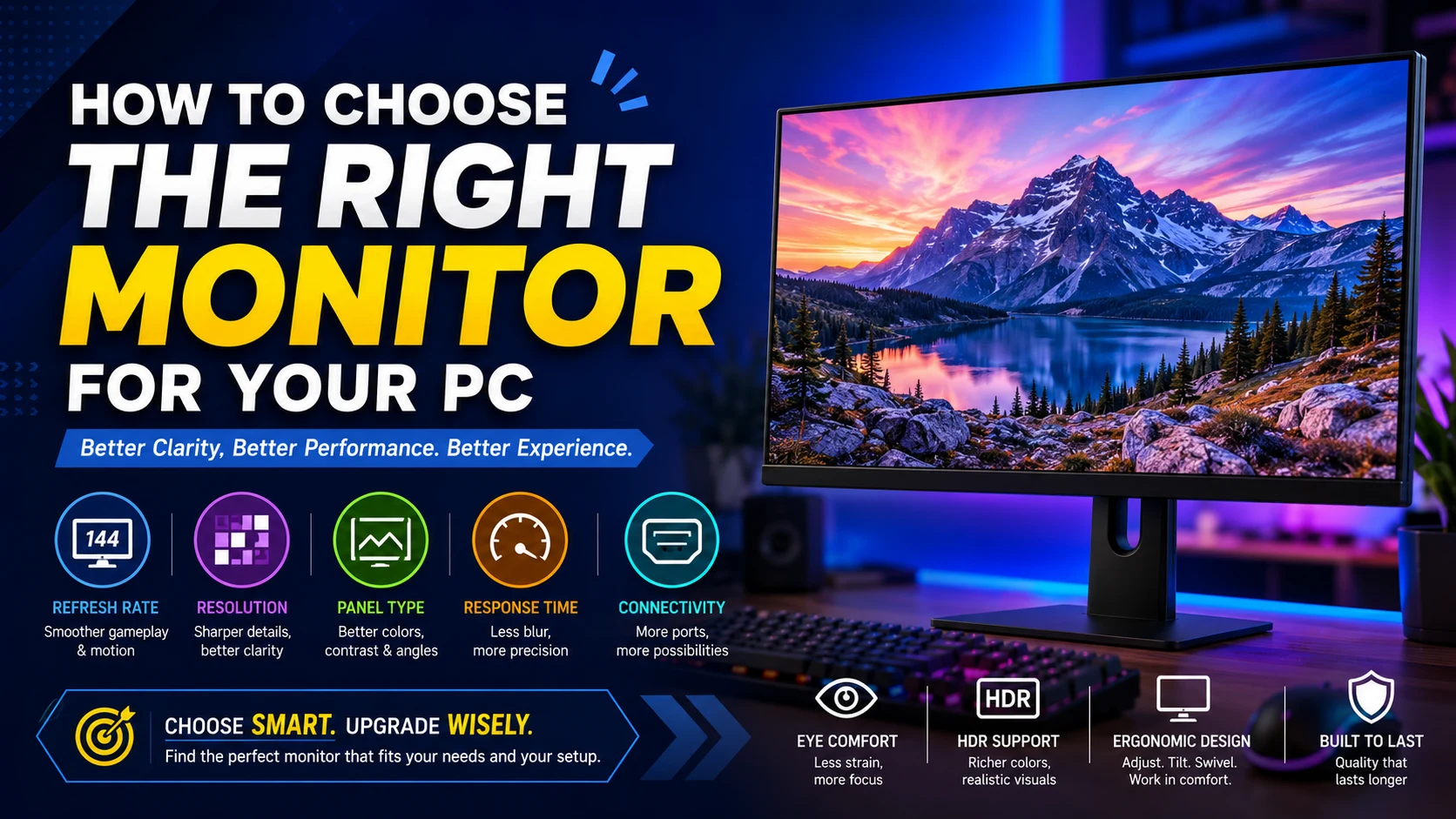
Your monitor is one of the most important parts of your PC setup. Whether you use your computer for gaming, editing, streaming, office work, or content creation, the right monitor can completely change your experience. A powerful PC paired with the wrong display can limit performance, reduce visual quality, and even cause eye strain during long sessions.
Modern monitors come with dozens of specifications — refresh rate, resolution, panel type, HDR, response time, color accuracy, and more. This guide will help you understand what actually matters so you can choose the perfect monitor for your needs and budget.
1. Decide Your Main Purpose
Before checking specs, identify what you’ll mainly use the monitor for.
Gaming
For gaming, focus on:
- High refresh rate
- Low response time
- Adaptive Sync support
- Good motion clarity
Competitive gamers usually prefer 144Hz to 240Hz monitors for smoother gameplay.
Video Editing & Content Creation
Creators should prioritize:
- Color accuracy
- Higher resolution
- IPS or OLED panels
- Wide color gamut support
Professional editing monitors often target 100% sRGB or high DCI-P3 coverage.
Office & Productivity
For work and multitasking:
- Sharp text clarity
- Comfortable screen size
- Adjustable stand
- Eye-care features
A 27-inch 1440p IPS monitor is considered the sweet spot for productivity.
2. Choose the Right Screen Size
Screen size affects immersion, workspace, and viewing comfort.
| Screen Size | Best Use |
|---|---|
| 22–24 inch | Budget setups, esports gaming |
| 27 inch | Best overall balance |
| 32 inch | 4K gaming, editing, multitasking |
| Ultrawide (34″+) | Productivity, immersive gaming |
Most users find 27-inch monitors ideal because they balance desk space, clarity, and comfort.
3. Understand Resolution
Resolution determines image sharpness.
| Resolution | Pixels | Best For |
|---|---|---|
| 1080p | 1920×1080 | Budget gaming |
| 1440p | 2560×1440 | Best balance |
| 4K | 3840×2160 | Editing & premium gaming |
1440p is widely considered the best value for modern PCs because it delivers sharp visuals without being as demanding as 4K.
A simple rule:
- 24-inch → 1080p
- 27-inch → 1440p
- 32-inch → 4K
Using low resolution on a large screen can make text and images appear blurry.
4. Refresh Rate Matters More Than You Think
Refresh rate determines how smooth motion looks.
60Hz<144Hz<240Hz
| Refresh Rate | Experience |
|---|---|
| 60Hz | Standard usage |
| 75Hz–100Hz | Smoother daily use |
| 144Hz | Excellent gaming experience |
| 240Hz+ | Competitive esports |
The jump from 60Hz to 144Hz feels massive in games and even during regular scrolling.
If your GPU cannot produce high FPS, ultra-high refresh rates may not provide full benefits.
5. Panel Types Explained
The panel type affects colors, contrast, viewing angles, and gaming performance.
IPS Panels
Best for:
- Editing
- Productivity
- General usage
Advantages:
- Excellent color accuracy
- Wide viewing angles
- Great overall balance
VA Panels
Best for:
- Movies
- Dark-room gaming
- Entertainment
Advantages:
- Better contrast
- Deeper blacks
Disadvantages:
- Slower pixel response in some models
OLED Panels
Best for:
- Premium gaming
- HDR
- Creative professionals
Advantages:
- Incredible contrast
- Perfect blacks
- Instant response times
Disadvantages:
- Expensive
- Potential burn-in risk with static elements
OLED monitors are becoming increasingly popular for high-end gaming setups.
6. Response Time & Adaptive Sync
Response Time
Lower response times reduce motion blur and ghosting.
- 1ms to 5ms is ideal for gaming
- Higher response times may cause blurry motion
Adaptive Sync
Technologies like:
- AMD FreeSync
- NVIDIA G-Sync
help eliminate screen tearing and improve smoothness.
7. HDR — Is It Worth It?
HDR improves brightness, contrast, and color depth.
However, not all HDR monitors deliver true HDR quality. Experts recommend looking for proper certifications like:
- DisplayHDR 600
- DisplayHDR 1000
Basic HDR monitors often provide minimal improvement.
8. Connectivity Options
Always check the ports before buying.
Common connections include:
- HDMI
- DisplayPort
- USB-C
USB-C monitors are especially useful because one cable can:
- Transfer video
- Charge laptops
- Handle USB devices
This helps reduce desk clutter significantly.
9. Curved vs Flat Monitors
Curved Monitors
Best for:
- Ultrawide gaming
- Immersive setups
Flat Monitors
Best for:
- Editing
- Competitive gaming
- General productivity
For most users, flat monitors remain the safer and more versatile choice.
10. Don’t Ignore Ergonomics
A good monitor stand improves comfort during long sessions.
Look for:
- Height adjustment
- Tilt adjustment
- Pivot rotation
- VESA mount support
Eye-care features like:
- Flicker-free technology
- Low blue light mode
can also reduce eye strain.
Best Monitor Recommendations by Usage
| Usage | Recommended Specs |
|---|---|
| Casual Gaming | 24″ 1080p 144Hz IPS |
| Competitive Esports | 24″ 240Hz TN/Fast IPS |
| AAA Gaming | 27″ 1440p 165Hz IPS/OLED |
| Video Editing | 27″ or 32″ 4K IPS |
| Office Work | 27″ 1440p IPS |
| Hybrid Gaming + Work | 27″ 1440p 144Hz IPS |
Final Thoughts
Choosing the right monitor is all about balancing your needs, PC performance, and budget. Instead of chasing the highest specs, focus on the features that actually improve your daily experience.
For most users in 2026, a 27-inch 1440p IPS monitor with a 144Hz refresh rate offers the best overall balance of gaming performance, productivity, and visual quality.
If you’re a creator, prioritize color accuracy and resolution. If you’re a competitive gamer, prioritize refresh rate and response time. And if you want the ultimate visual experience, OLED is quickly becoming the premium choice.