
 processor-Intel

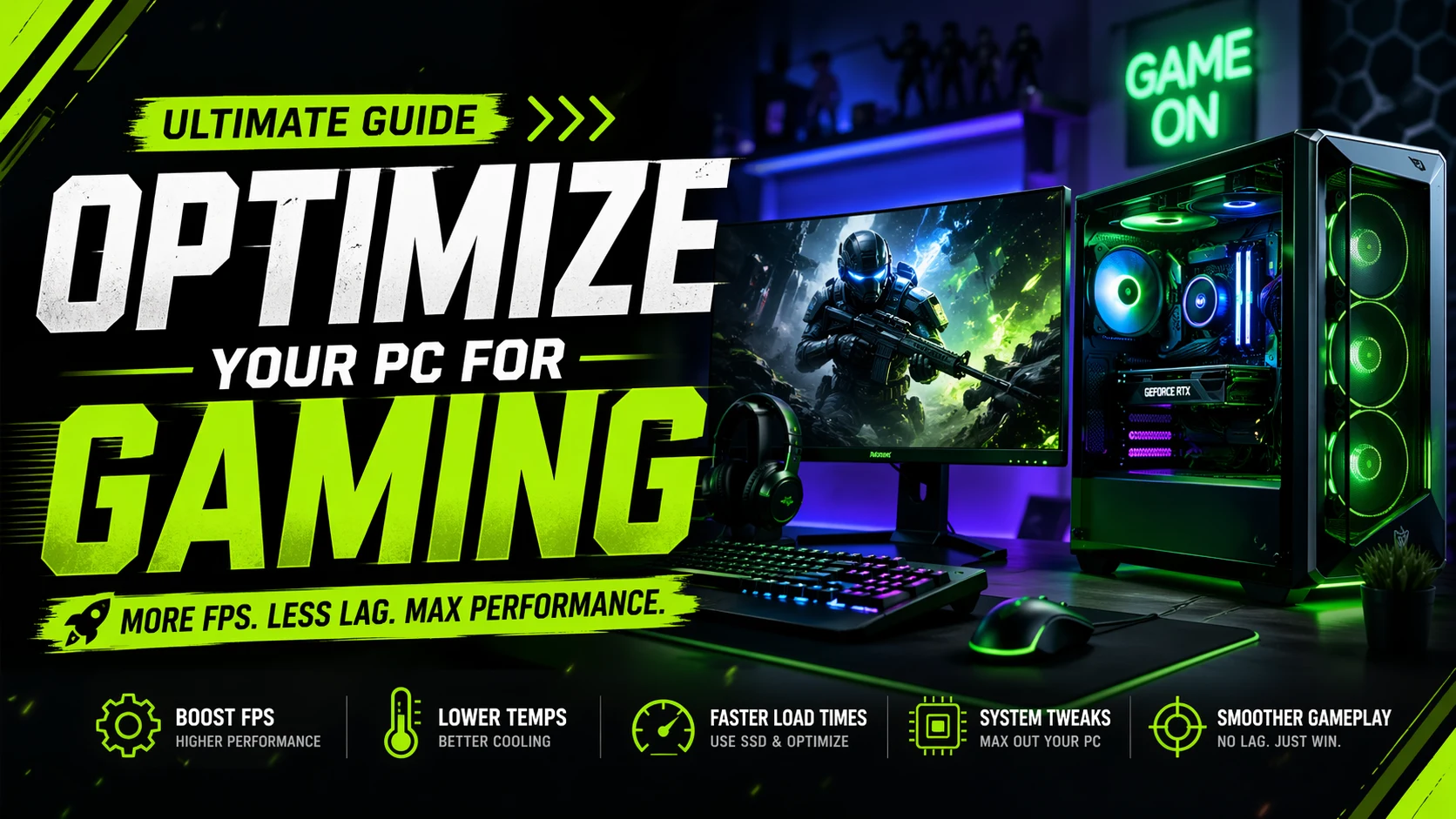
If you want smoother gameplay, higher FPS, and a lag-free experience, optimizing your PC is just as important as having powerful hardware. Whether you’re a casual gamer or a competitive player, these steps will help you unlock your system’s full potential.
🎮 1. Update Your Drivers (Most Important Step)
Your GPU drivers directly impact gaming performance.
- For NVIDIA users → Use GeForce Experience
- For AMD users → Use AMD Software: Adrenalin Edition
✅ Always install the latest drivers for:
- GPU
- Motherboard chipset
- Audio & LAN drivers
💡 New drivers often include game-specific optimizations that boost FPS instantly.
⚡ 2. Optimize In-Game Settings
Even high-end PCs need proper settings.
Best balance settings:
- Resolution → Native (1080p / 1440p / 4K)
- Texture Quality → High
- Shadows → Medium
- Anti-Aliasing → Low/Medium
- Motion Blur → OFF
💡 Competitive gamers prefer low settings for higher FPS and better visibility.
🔧 3. Enable Game Mode & Performance Settings
On Windows 11 or Windows 10:
- Turn ON Game Mode
- Set Power Plan → High Performance
- Disable Xbox Game Bar (if not needed)
👉 This reduces background interference and boosts system performance.
🧹 4. Clean Background Processes
Too many apps running = lower FPS.
Do this:
- Press Ctrl + Shift + Esc → Open Task Manager
- End unnecessary tasks (Chrome tabs, apps, launchers)
💡 Disable startup apps:
- Go to Startup tab
- Turn off apps you don’t need
💾 5. Upgrade to an SSD (If You Haven’t)
If you’re still using an HDD, you’re losing performance.
- Install games on an SSD (preferably NVMe)
- Faster load times
- Reduced stuttering in open-world games
🌡️ 6. Keep Your PC Cool
High temperatures = lower performance (thermal throttling)
Tips:
- Clean dust regularly
- Replace thermal paste (every 1–2 years)
- Ensure proper airflow (intake + exhaust fans)
💡 Ideal temps:
- CPU: 60–80°C
- GPU: 65–85°C
🔄 7. Adjust GPU Control Panel Settings
NVIDIA Control Panel:
- Power Management Mode → Prefer Maximum Performance
- Low Latency Mode → ON
AMD Settings:
- Radeon Anti-Lag → ON
- Radeon Boost → ON
🖥️ 8. Optimize Display Settings
- Set monitor to highest refresh rate (144Hz / 165Hz / 240Hz)
- Enable:
- G-Sync (NVIDIA)
- FreeSync (AMD)
💡 This reduces screen tearing and improves smoothness.
🧠 9. Increase Virtual Memory (Optional Boost)
- Go to Advanced System Settings
- Increase paging file size
💡 Helps in RAM-heavy games like:
- Warzone
- GTA V
- Cyberpunk 2077
🛠️ 10. Keep Your System Clean & Updated
- Update OS regularly
- Scan for malware
- Keep storage at least 20% free
🔥 Bonus Tips for Maximum FPS
- Use Performance Mode in games (if available)
- Disable full-screen optimizations (right-click game → properties)
- Overclock GPU/CPU (only if you know what you’re doing)
🎯 Final Thoughts
Optimizing your PC isn’t about just one tweak—it’s a combination of small improvements that together create a huge performance boost. Even mid-range systems can deliver excellent gaming performance if properly tuned.
Keep up the great work.
Excellent explanation, thanks!
This guide explained everything clearly.